


Five minutes inside Kwilo.

The screens you use to keep the day moving: Customers, Jobs, Quotes, Invoices, records and review work in context.

Kwilo desktop jobs workspace
Start with the workEvery live job, visible in context.

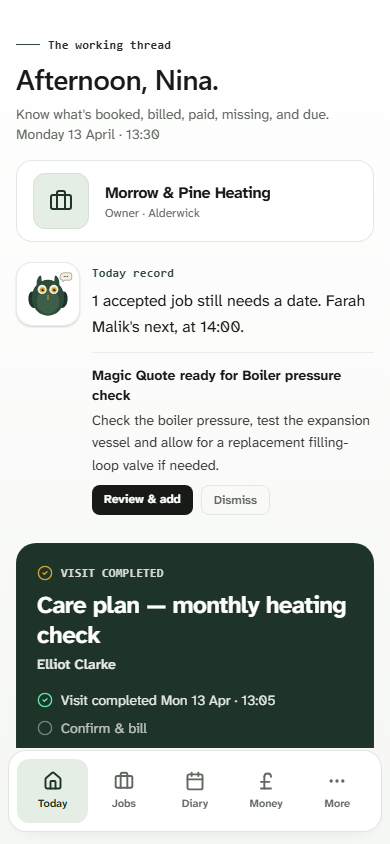
Kwilo Today screen

Start the day

Open the app. Know your day.

What is booked, what needs attention, what has been paid, and what still needs a record. No five-tap dig to the thing you actually wanted.

  • Coming-up timeline shows the next job and where it sits
  • See what's owed and what still needs an invoice
  • Tap once to start the day, mark a job done, or add an extra
Kwilo Voice quote screen

Capture the work

Quote wherever you are.

Capture the work in your own words. I keep the Job detail, Customer context and Quote draft close together so you are not starting from a blank page.

  • Draft Quotes from Job notes and saved work detail
  • Customer review and approval stay tied to Quote status
  • Accepted Quote context stays ready for the Job
Kwilo Jobs screen

Keep the week moving

Every job in one list.

Status tags tell you what needs doing. Stale Quotes, ready-to-invoice work and follow-ups are visible before the week gets away from you.

  • Filter by what needs your attention next
  • Status flags catch quotes going cold and extras awaiting approval
  • One click from list to full job — no hunting
Kwilo Money & MTD screen

Review before it matters

Review the books without guesswork.

Income, expenses and records stay close to the work. From the same record, connect Xero, QuickBooks or FreeAgent, work with your accountant in Kwilo, or handle straightforward books yourself.

  • Send supported records to the accounting package you already use
  • Invite your accountant or bookkeeper as an Advisor
  • Review supported HMRC workflows before anything is submitted

A few more screens from inside.

The bits you'll live in once you're set up — your jobs list, your week, your money page.

Kwilo mobile jobs list

Jobs · mobile

Every job, status-tagged. Stale quotes and ready-to-invoice work stand out.

Kwilo mobile money screen

Money · mobile

Quarterly records and review prompts in your pocket. Check what is ready, what is missing and what needs attention.

Kwilo desktop diary week view

Diary · desktop

Your week at a glance. Booked, quoting, in progress — and where the gaps are.

The phone views help when you are moving between Customers. Desktop is there when you want more room to review work, money and records.

Join the rollout before the next busy week.

The button opens the app sign-in page. That is where early access is requested while rollout is limited.